
Free SEO Tools for Beginners That Are Simple and Useful
free seo tools for beginners
When you’re new to SEO, the whole thing can seem confusing and overwhelming. Between technical jargon, algorithm updates, and the sheer number of tools available, it’s easy to assume you need a big budget to even get off the ground. The truth is, some of the most useful SEO tools out there are completely free and many professionals still use them daily even after years in the field.
This guide walks through the best free SEO tools for beginners, what each one actually does, and how to use them without getting lost.
Why Free SEO Tools Are Enough to Start With
Before jumping into the tools, it’s worth understanding why paid tools aren’t necessary at the beginning. Most premium platforms like Ahrefs or Semrush charge anywhere from $99 to $499 per month. For someone just learning SEO, that’s a big investment before you even know if the strategy is working.
Free tools, especially Google’s own suite, give you access to real data directly from the source. And “real data from the source” matters more than having a fancy dashboard.
Once you understand the fundamentals of how traffic works, what keywords mean, and how your site is performing, you’ll know exactly which paid tool (if any) is actually worth it for your situation.
Google Search Console
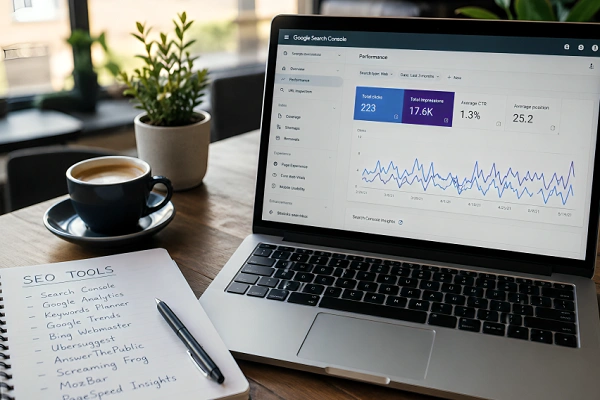
What it is: Google’s official free tool for monitoring your site’s presence in Google Search.
What it tells you:
- Which keywords are bringing people to your site
- How many times your pages appeared in search results (impressions)
- How many people actually clicked through (clicks)
- Your average position for different search queries
- Whether Google has any issues crawling or indexing your pages
How to set it up: You need to verify ownership of your website. Google provides multiple verification methods; the easiest for most beginners is adding an HTML tag to your site’s header, or using the Google Analytics connection if you already have that set up.
Why beginners should use it: This is probably the single most important SEO tool you can use, and it’s completely free. For sure, it tells you how Google sees your site. If a page isn’t appearing in search results, Search Console will usually tell you whether it’s a crawl error, an indexing issue, or something else entirely.
One thing to keep in mind: data in Search Console can take a few days to appear. Don’t panic if you don’t see anything immediately after setting it up.
Google Analytics 4 (GA4)
What it is: Google’s free website analytics platform.
What it tells you:
- How many people are visiting your site
- Where that traffic is coming from (organic search, social media, direct, referral, etc.)
- Which pages get the most visits
- How long people stay on your site
- What percentage of visitors leave immediately (bounce behavior)
How it’s different from Search Console: Search Console tells you what happens before someone clicks on your site (search impressions, rankings). GA4 tells you what happens after they arrive (behavior on your site). Both tools together give you a much clearer picture.
What beginners often miss: GA4 has a steeper learning curve than the older Universal Analytics. When you first log in, it can look confusing. Start simple, just look at your organic traffic numbers over time. If the number grows, your SEO efforts are working. If it drops, something needs attention.
GA4 is also free, and there’s no traffic cap that forces you to upgrade.
Google Keyword Planner
What it is: Originally built for Google Ads users, this tool provides keyword data that’s genuinely useful for SEO too.
What it shows:
- Monthly search volume ranges for specific keywords
- Competition levels (though this refers to ad competition, not SEO competition)
- Related keyword ideas you might not have thought of
The catch: You need a Google Ads account to access it. It’s free to make one, but Google will tell you to set up a campaign. You can skip past this without actually running any ads. First, find the “Switch to Expert Mode” button.
How to use it for SEO: Type in a topic related to your website. Keyword Planner will show you related terms and their approximate monthly search volumes. This helps you understand whether people are actually searching for a topic before you spend time writing about it.
The search volume data is shown in ranges (like “1K–10K” per month) rather than exact numbers unless you’re running active ads. For beginners, the ranges are usually specific enough to guide decisions.
Google Trends
What it is: A free tool that shows how search interest in a topic has changed over time.
What it’s good for:
- Checking whether a topic is growing or declining in popularity
- Finding seasonal patterns (useful if your site covers topics like holiday gifts or tax season)
- Comparing two or more keywords to see which gets more interest
- Discovering regional differences in search behavior
Practical example: If you have a gardening blog and aren’t sure whether to write about “indoor plants” or “vertical gardening,” you can use Google Trends to see which term gets more search traffic and whether that traffic is staying the same, growing, or decreasing.
What it doesn’t tell you: Exact search volumes. Google Trends shows relative popularity on a scale of 0 to 100, not actual numbers. It’s best used alongside Keyword Planner, not instead of it.
Bing Webmaster Tools
What it is: What Google Search Console is to Google, but for Bing.
It’s often overlooked by beginners because Google dominates the search market. But Bing (which also powers Yahoo and DuckDuckGo to some extent) still accounts for a meaningful percentage of searches, especially in the United States and among older demographics.
Why it’s worth setting up: Bing Webmaster Tools has a keyword research feature that shows actual search volumes rather than ranges which is more specific than what Google’s free Keyword Planner offers. It also has a site scan feature that checks for common SEO issues.
Setup is similar to Google Search Console where you verify ownership and then get access to traffic data, crawl reports, and keyword information.
Ubersuggest (Free Version)
What it is: A keyword research and site audit tool created by digital marketer Neil Patel.
What the free version includes:
- 3 searches or reports per day (this applies whether you have a free account or not the limit is the same either way)
- Basic keyword data including search volume, SEO difficulty, and paid difficulty
- A limited site audit that crawls up to 150 pages per week
- Competitor domain overview
Honest assessment: The free version is genuinely limited. You’ll hit the daily cap quickly if you’re doing any serious research. But for a beginner who’s just starting to understand what keyword difficulty means or what a site audit looks like, it’s a useful introduction without any cost.
AnswerThePublic (Free Searches)
What it is: A tool that visualizes questions people ask around a specific keyword.
How it works: Type in a keyword and it generates a visual map (or list) of questions, prepositions, comparisons, and related terms that real people search for. It pulls from autocomplete data.
Example: If you type in “coffee,” you might see questions like “why does coffee make me tired,” “coffee vs tea for energy,” or “how coffee is made.” These question-based keywords are often great targets for blog content because they match what people actually type into Google when they’re looking for information.
The free limitation: The free version allows a limited number of searches per day. For most beginners doing occasional research, this is usually enough to get useful ideas without needing to upgrade.
Screaming Frog SEO Spider (Free Version)
What it is: A desktop application that crawls your website the way a search engine would, identifying technical SEO issues.
What the free version can crawl: Up to 500 URLs per website.
What it finds:
- Broken links (404 errors)
- Title tags and meta descriptions that are missing or similar
- Pages with missing H1 headings
- Redirect chains
- Pages blocked from indexing
Who it’s most useful for: This tool is slightly more technical than the others on this list. If you’re comfortable with basic website concepts and want to go beyond just content, Screaming Frog gives you a detailed technical picture of your site. For most small websites (under 500 pages), the free version covers everything you’d need.
Installation note: You download it and run it on your computer. It’s available for Windows, Mac, and Linux.
MozBar (Free Chrome Extension)
What it is: A browser extension made by Moz that overlays SEO data on top of your regular Google search results.
What it shows:
- Domain Authority (DA) a score from 1-100 indicating how strong a website’s overall backlink profile is
- Page Authority (PA) a similar score for individual pages
- Number of links pointing to a page
How beginners use it: When you search for a keyword and see the results, MozBar shows you the authority scores of the sites ranking on page one. If the first page is dominated by high-DA sites (say DA 60, 75, 80+), competing as a new website is going to be very tough.
If you see a mix that includes lower-DA sites (DA 20–40), there may be an opening especially if your content is more thorough and better targeted. The threshold varies by niche; the point is to compare, not to chase a fixed number.
Important context: Domain Authority is a metric created by Moz, not by Google. Google has never confirmed that DA directly influences rankings. It’s still a useful indicator of relative site strength, but don’t treat it as an absolute measure of SEO success.
PageSpeed Insights
What it is: A free Google tool that checks how quickly your web pages load and gives you tips on how to make them faster.
Why page speed matters for SEO: Google has officially confirmed that page speed is a ranking factor, particularly on mobile. A slow site doesn’t just frustrate users — it can actively hurt your search rankings.
What it measures:
- Core Web Vitals (Largest Contentful Paint, Cumulative Layout Shift, Interaction to Next Paint)
- Both mobile and desktop efficiency scores as a whole
- Specific suggestions for what’s slowing the page down
How to use it: Go to pagespeed.web.dev, enter your URL, and wait for the report. The results are divided into mobile and desktop. Pay most attention to the mobile score, since Google primarily uses the mobile version of your site for indexing.
Don’t expect a perfect 100. Mobile scores are harder to achieve than desktop scores; many real-world sites score below 50 on mobile due to images, JavaScript, and hosting limitations. Focus on the “Opportunities” section, which shows the specific changes that would have the biggest impact.
And keep in mind: it’s the Core Web Vitals section at the top (based on real user data) that actually affects rankings, not the overall Lighthouse performance score.
How to Use These Tools Together
An inventory of tools is one thing. Knowing how to actually use them together is what makes the difference.
Here’s a simple workflow for someone just getting started:
Step 1 Set up the basics first
Install Google Search Console and Google Analytics 4 before anything else. These two tools are the foundation. They are what everything else is built atop of.
Step 2 Research before you write
Before creating any content, use Google Keyword Planner, AnswerThePublic, and Google Trends to understand what people are actually searching for and how competitive those terms might be.
Step 3 Check your technical health occasionally
Run your site through Screaming Frog every few months, or when you make significant changes. Use PageSpeed Insights to make sure your pages load at a reasonable speed.
Step 4 Watch your progress
After publishing content, check Search Console every few weeks to see if new keywords are appearing, if impressions are rising, and if you’re moving up in position for your target terms. For competitive terms, SEO takes a while—usually between three and six months—before you see real progress.
Common Mistakes Beginners Make With Free SEO Tools
Checking rankings obsessively
Rankings fluctuate daily. Looking at your position every day will drive you to your limit. Check monthly trends instead.
Ignoring Search Console errors
If Search Console shows crawl errors or coverage issues, those need to be addressed. Many beginners set it up and never look at it again.
Targeting keywords that are too competitive
A beginner website competing for “best laptops 2025” against major tech publications isn’t going to win. Start with more specific, lower-competition terms often called long-tail keywords.
Confusing traffic with rankings
A page can rank well but get little traffic if the keyword has low search volume. A page can also rank lower but get decent traffic if the keyword is popular. Track both.
Final Thoughts
When I first started learning SEO, I spent weeks convinced I needed a paid tool to do anything meaningful. Eventually I realized that Google Search Console alone was telling me more than I knew what to do with. The tools in this guide are genuinely enough to build a solid SEO foundation especially in the first year.
The goal isn’t to use every tool on this list at once. Pick two or three, learn them properly, and add more as you get comfortable. Starting with Google Search Console, Google Analytics 4, and Google Keyword Planner will cover the majority of what most beginners actually need.
Everything else is secondary until you’ve got those basics working for you.